Zone management
The Zone management section provides an overview over all zones and their assets and allows to edit and assign assets to zones.
Zones are freely definable logical units, such as 'Brewing', 'Cooling', 'Environment', 'OT Network', etc.
Each asset can be assigned to a zone, and a zone can contain any number of assets. Its zone-specific values 'Business criticality' and 'Exposure' can be set for each zone.
All assets contained in a zone then adopt their zone values as their own values. On this basis, SINEC Security Guard can later calculate a risk level for each asset and vulnerability:
If, for example, Asset A is located in the 'chemical reactor' zone ('high business criticality', 'high exposure') and an identical Asset B is located in the 'shipping' zone ('low business criticality', 'medium exposure'), the risk level for Asset A will be higher than that for Asset B.
Zone-specific values
The following values of a zone occur in several places:
-
Number of assets
Counts all assets assigned to the zone.
-
Business criticality
Expresses how bad ('Negligible', 'Moderate', 'Critical', 'Disastrous') a failure or unsafe operation of the zone and its assets would be for the operation of the plant or the achievement of the production result.
-
Exposure
Expresses how much the zone and its components are exposed to external access. Consider all potential attack vectors (physical access, network access, etc.) and choose the lowest applicable degree of protection.
-
Individually rated
Number of assets that deviate from the zone default with respect to 'Business criticality' and/or 'Exposure'.
-
IP ranges
Number of different IP ranges created for this zone in step 2 of the Zone wizard.
-
Description
Free text to better identify the respective zone or to distinguish it from other zones.
Zone overview
The zone overview displays tiles for 'Unassigned assets' ①, 'Disregarded assets' ②, and manually created zones ⑦. The 'Zone wizard' allows for the creation of new zones ⑤ and modification of existing ones.
| Tile | Place for assets that... | Risk level... |
|---|---|---|
| 'Unassigned assets' ① | … have been newly added to the inventory or removed from 'Disregarded assets' or a zone | … is 'Undefined' for each asset, as 'Business criticality' and 'Exposure' cannot be determined |
| 'Disregarded assets' ② | … should be excluded from calculations and not considered in reports and KPIs/counters | … is not calculated, as the assets are meant to be ignored |
| Manually created zone ⑦ | … are part of a logical group within the facility and are often viewed and managed together | … is calculated and can be either 'Low', 'Medium', 'High', or 'Critical' |
Important values for each zone are displayed on the front and back of the respective tile (accessible via the buttons 'Flip view' ⑫ and 'Flip all' ④).
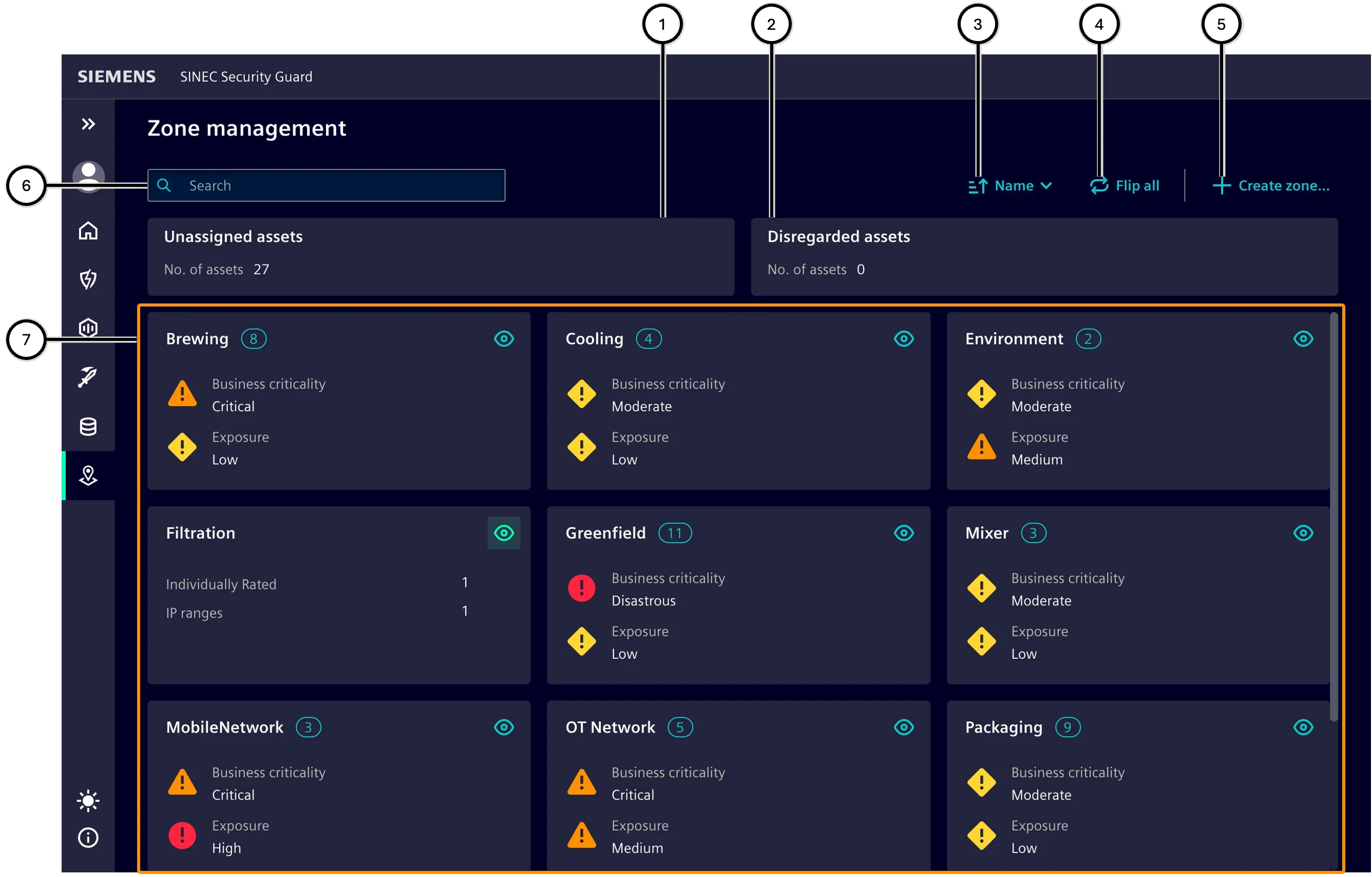
| Number | Element |
|---|---|
| ① | 'Unassigned assets' tile |
| ② | 'Disregarded assets' tile |
| ③ | Sort order selection button |
| ④ | 'Flip all' button |
| ⑤ | 'Create zone' button |
| ⑥ | Input field for filtering the zones |
| ⑦ | Area with manually created zones |
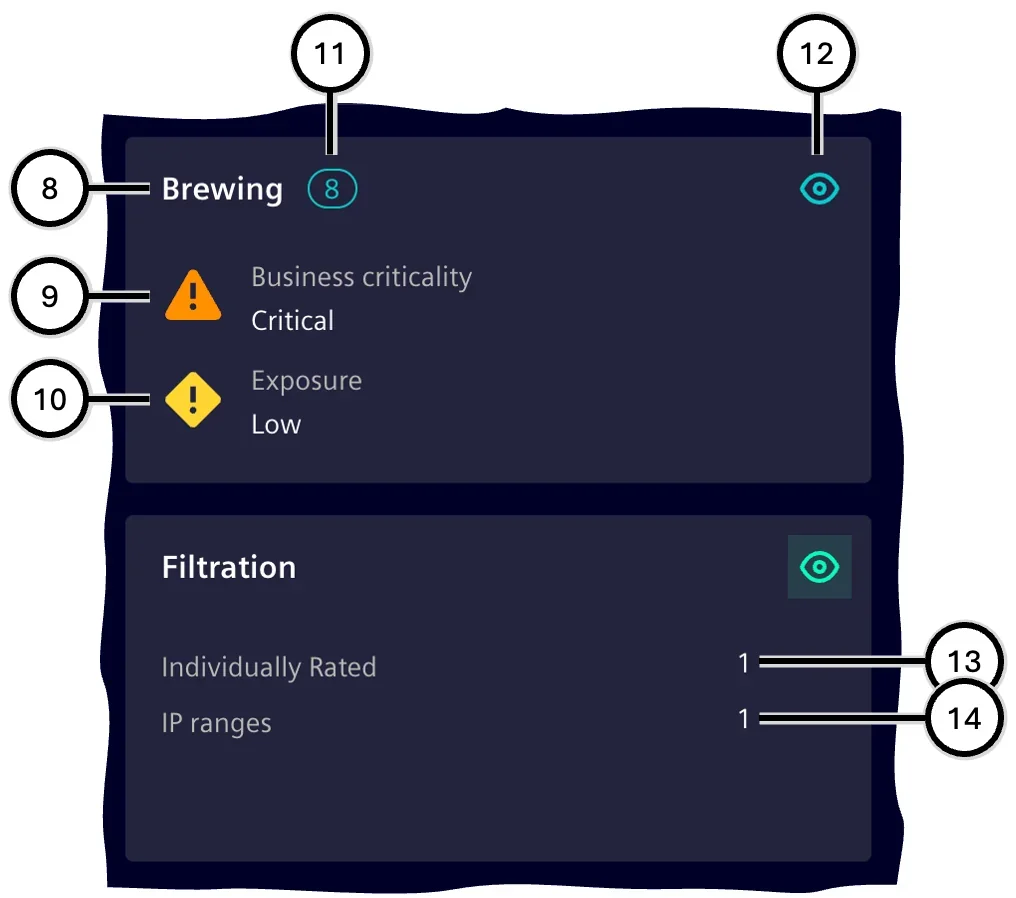
| Number | Element |
|---|---|
| ⑧ | Name of the zone |
| ⑨ | 'Business criticality' of the zone |
| ⑩ | 'Exposure' of the zone |
| ⑪ | Number of assets in this zone |
| ⑫ | 'Flip view' button |
| ⑬ | Individually rated |
| ⑭ | Number of 'IP ranges' |
Zone details
Zone details contain all zone-related values and offer functions to change the state of the zone. Clicking the button ① takes you back to the 'Zone overview'. The asset list ⑧ includes assets assigned to the zone.
The value 'Zone default' indicates that the asset adheres to the respective default value defined for the zone ⑥. An entry other than 'Zone default' means that a different value has been specified for this asset, counting it as 'Individually rated'. To better identify such non-default assets and, if necessary, reequip them with default settings, the 'Individually rated' button filters out assets with two default values.
A manually created zone can be modified via the 'Edit zone' button ④ and removed via the 'Delete zone' button ⑤.
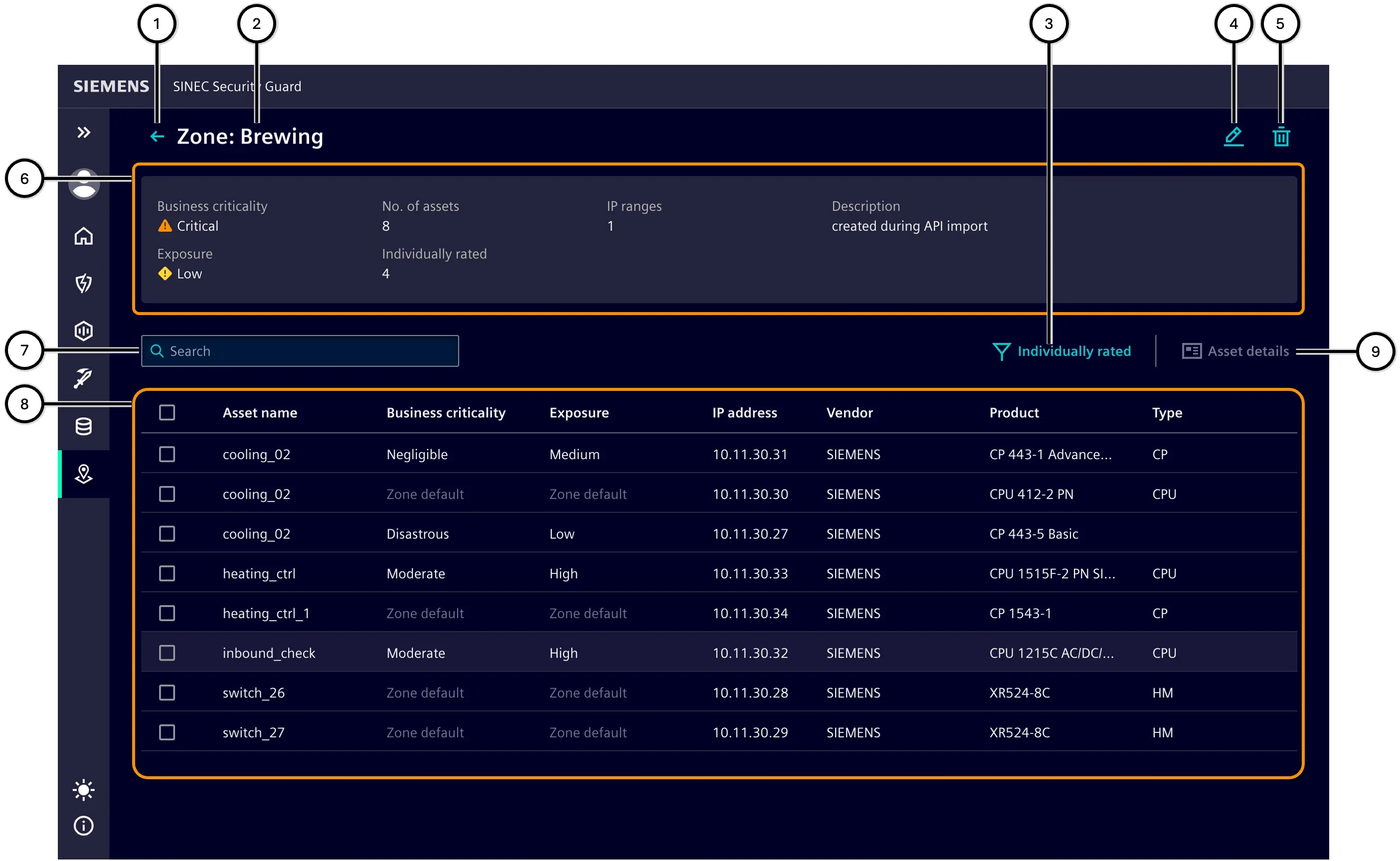
| Number | Element |
|---|---|
| ① | Button for navigation to the 'Zone overview' |
| ② | Name of the selected zone |
| ③ | Button to display only those assets that are individually rated |
| ④ | 'Edit zone' button |
| ⑤ | 'Delete zone' button |
| ⑥ | Zone information |
| ⑦ | Input field for filtering assets |
| ⑧ | List of assets in the selected zone |
| ⑨ | Display of asset details |
Zone wizard
The 'Zone wizard' guides you through all the necessary steps when manually creating a new zone and also when editing an existing zone. You can switch to the respective step by clicking on a step or using the navigation buttons (⑥, ⑦):
-
Zone definition
-
IP range
-
Individual assets
-
Summary
The status of each step is displayed as follows (here using the example of the 'IP range' step: top row in 'unselected' status, bottom row in 'selected' status):
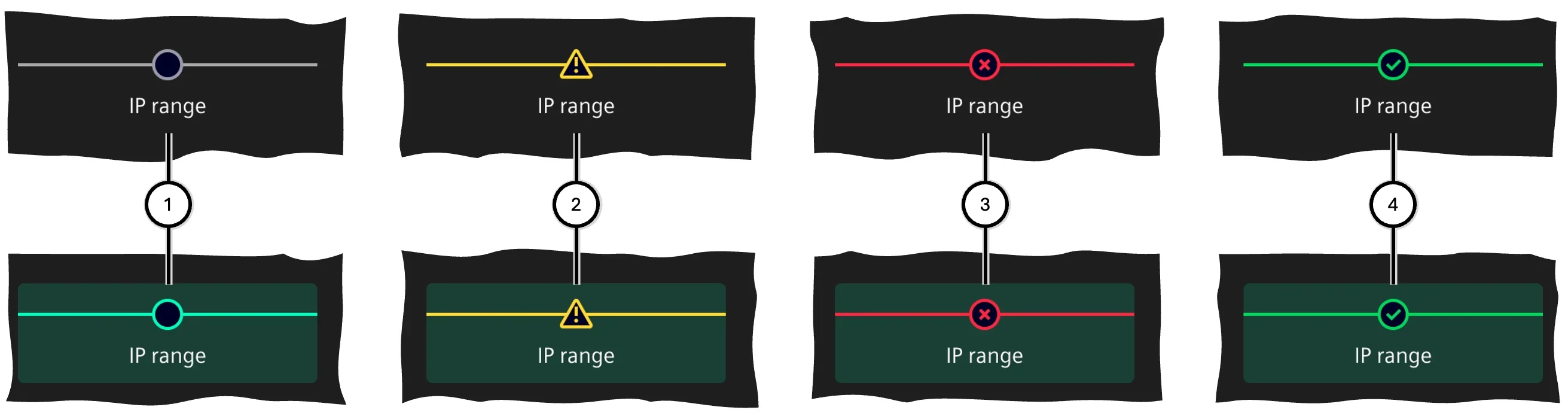
| Number | Status | Description |
|---|---|---|
| ① | Open | This step has not yet been processed |
| ② | Warning | This step contains data that needs attention |
| ③ | Error | This step contains one or more errors and prevents the wizard from completing |
| ④ | Successful | This step has been successfully completed |
The buttons for navigating through the 'Zone wizard' support you in step-by-step editing.
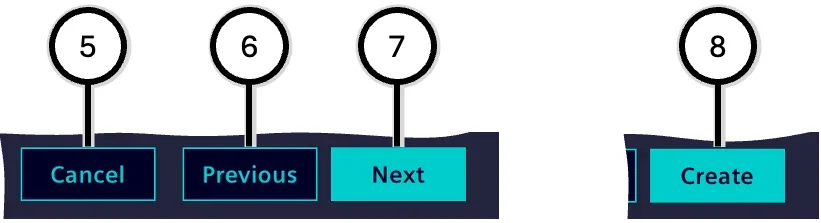
| Number | Action | Description |
|---|---|---|
| ⑤ | Cancel | Ends the 'Zone wizard' without creating a new zone; entered data will be discarded |
| ⑥ | Previous | Moves to the previous step (available from step 2 onwards) |
| ⑦ | Next | Moves to the following step (available until the penultimate step) |
| ⑧ | Create | Ends the 'Zone wizard' and creates a new zone with the entered data (only available in the last step) |
Zone definition
In this step, basic information about the zone is defined:
-
Zone name ②
The name of the zone. At least one character must be entered, and the zone name must not already be assigned to another zone.
-
Business criticality (③ - 'Negligible', 'Moderate', 'Critical', 'Disastrous')
Expresses how bad a failure or insecure operation of the zone and its assets would be for the operation of the facility or the achievement of the production outcome.
-
Exposure (④ - 'Low', 'Medium', 'High')
Expresses how much the zone and its components are exposed to external access; all possible attack vectors (physical access, network access, etc.) should be considered and the absolutely lowest applicable protection level should be entered.
-
Description ⑤
A text that explains the characteristics of the zone.
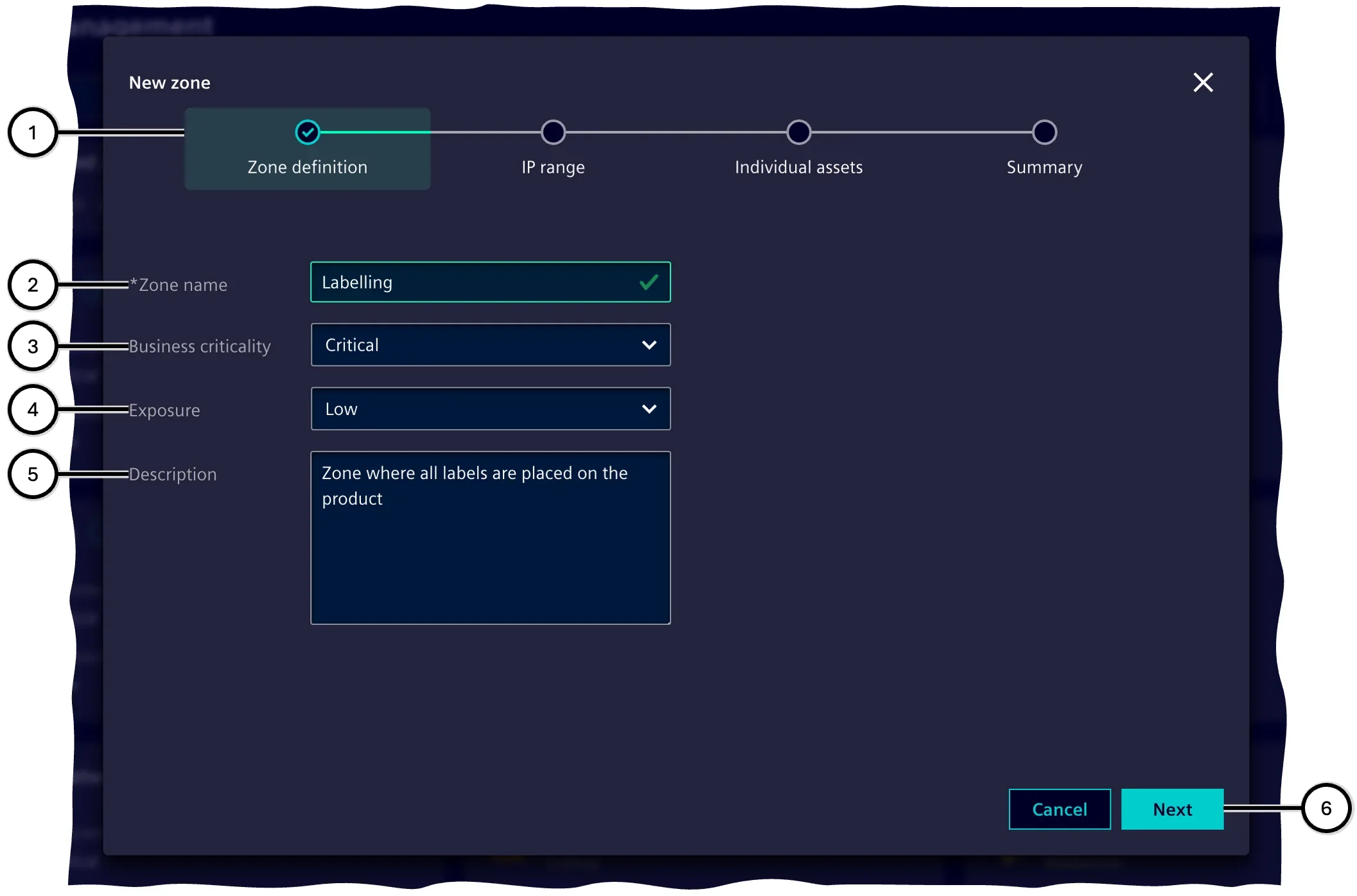
| Number | Element |
|---|---|
| ① | Steps of the 'Zone wizard' |
| ② | Zone name |
| ③ | Business criticality |
| ④ | Exposure |
| ⑤ | Description |
| ⑥ | Buttons for navigating through the 'Zone wizard' |
IP range
In this step, assets are added to the zone based on their belonging to an IP range.
Note Assets that are part of an IP range of the current zone and have been manually added to its exclusion list in step 'IP range' will not be listed in the step 'Individual assets'.
Any number of IP ranges ⑤ can be defined according to the IPv4 or IPv6 protocols (③, ⑥); the start IP address (⑧) and end IP address (⑨) are required for this. See also Checking user input.
IP ranges can be duplicated and also deleted (⑫, ⑬).
All assets that have at least one IP address in an IP range are automatically assigned to this range. If the IP address displayed with an asset is not in the IP range, the asset has other IP addresses, at least one of which is in the IP range.
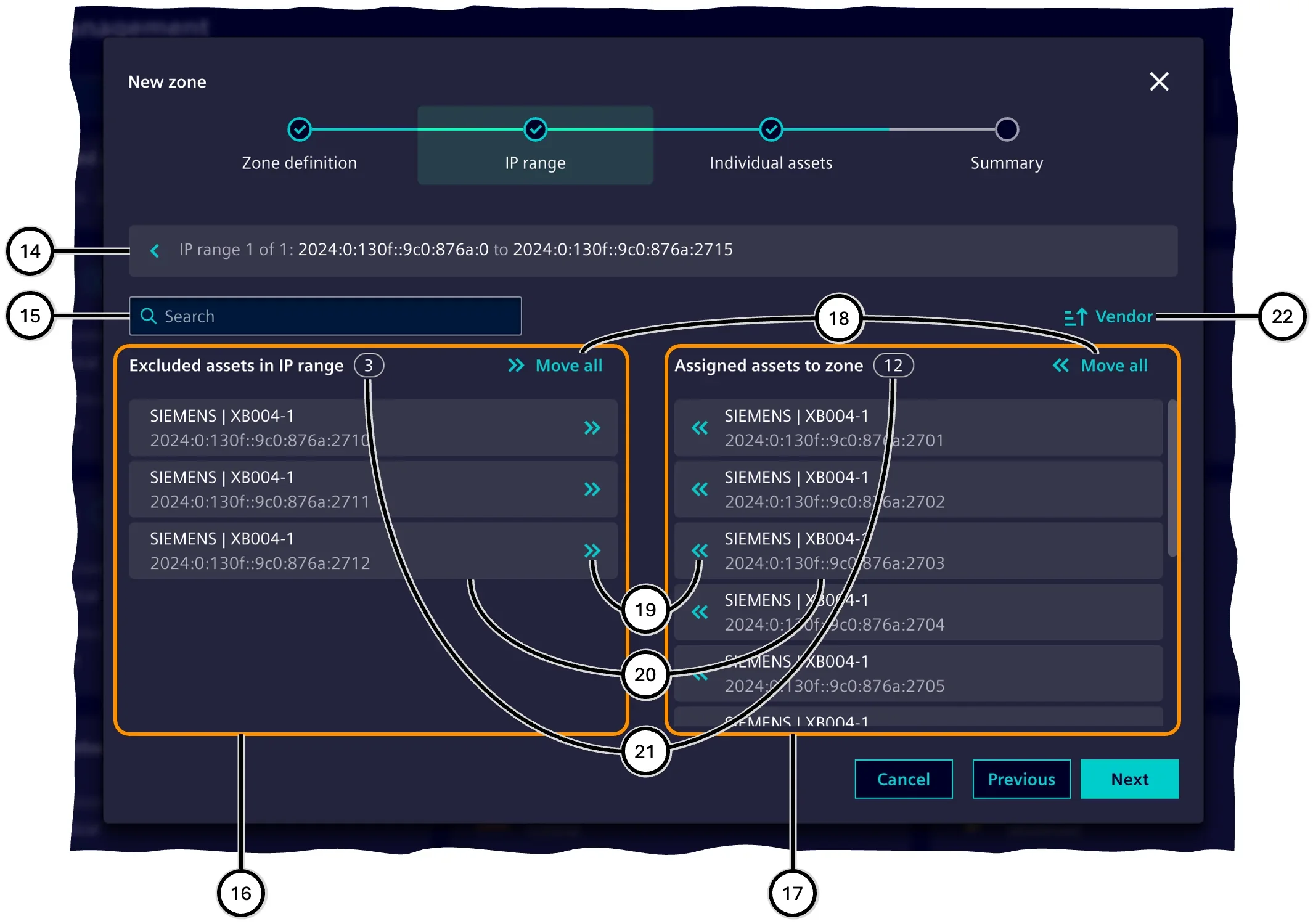
The assignment of assets in an IP range to the zone can then be adjusted manually ⑪. For each IP range, it is shown how many assets from the IP range are actually assigned to the zone and how many assets are within the start and end addresses in principle ⑩.
The assignment of assets offers these lists:
-
Exclusion list ⑯
These assets are not assigned to the zone and remain part of the unassigned assets.
-
Assignment list ⑰
These assets are part of the zone.
It is possible to move all assets in a list ⑱ or individual assets ⑲ to the other list. The manufacturer, asset name and IP address are displayed for each asset ⑳. An input field ⑮ makes it possible to find specific assets within the lists (⑯, ⑰). The sorting of the assets can be changed (㉒).
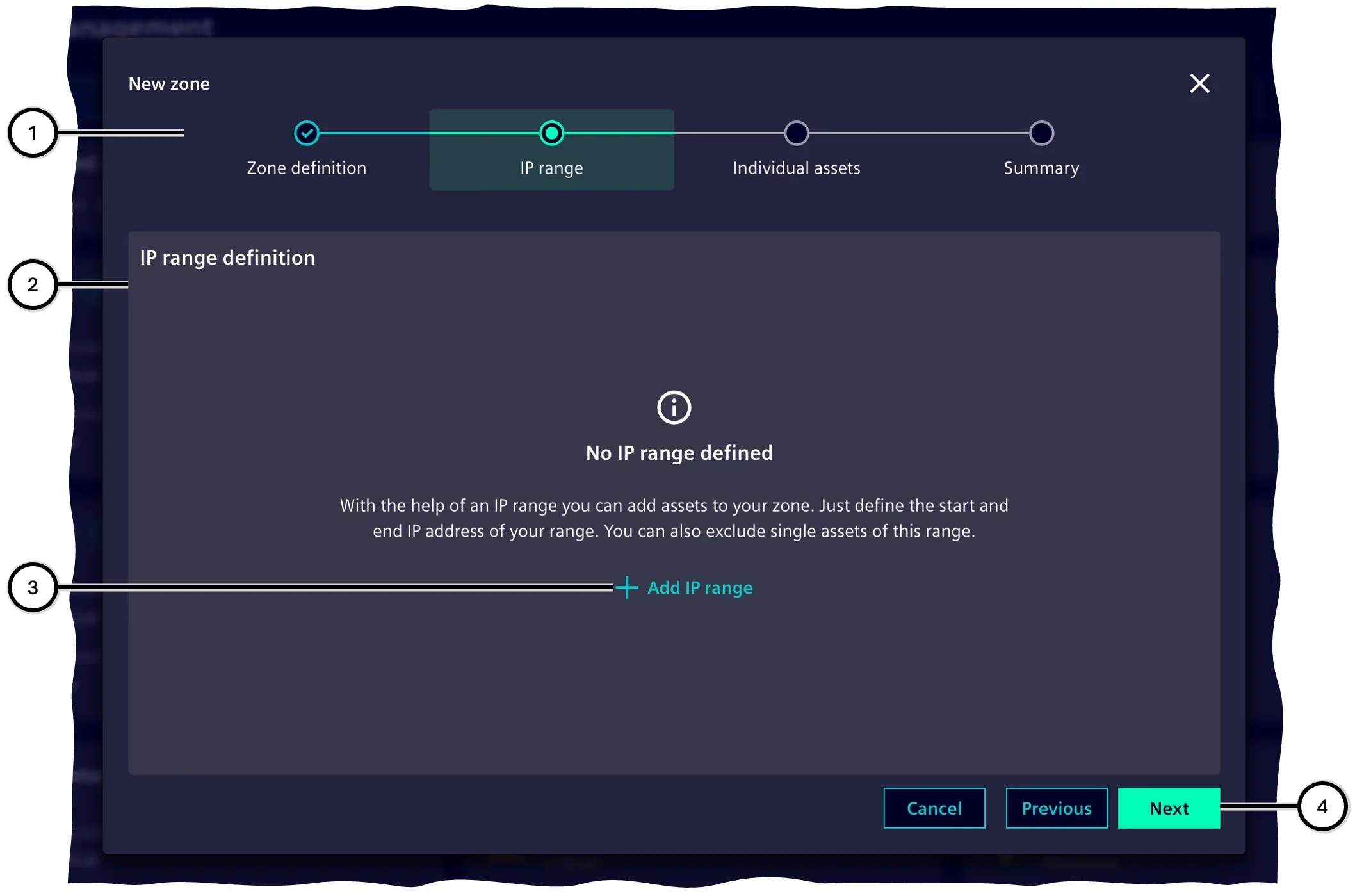
| Number | Element |
|---|---|
| ① | Steps of the 'Zone wizard' |
| ② | Display of defined IP ranges |
| ③ | Button to create a new IP range |
| ④ | Buttons for navigation through the Zone wizard |
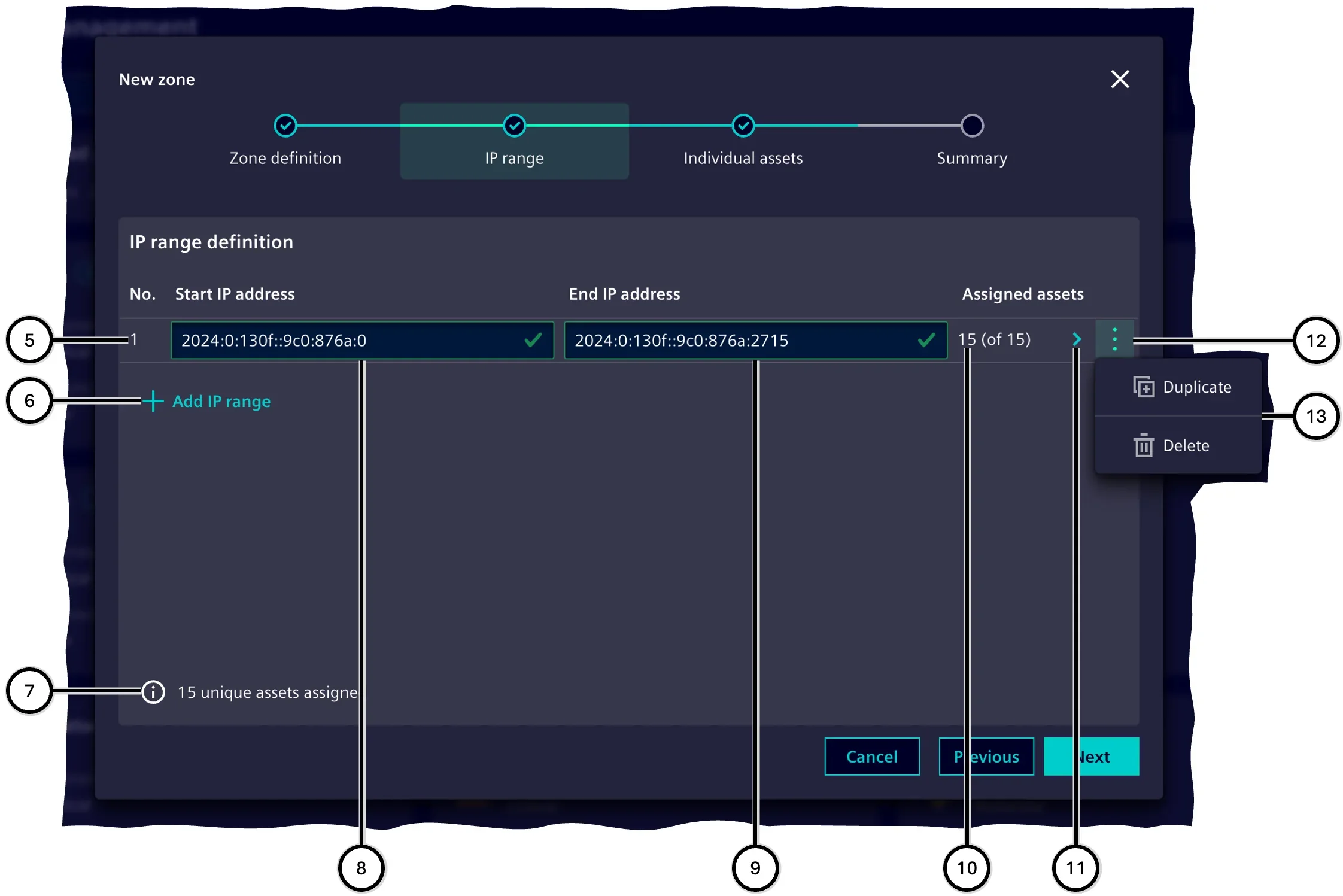
| Number | Element |
|---|---|
| ⑤ | IP range, consisting of start and end IP address |
| ⑥ | Button to create a new IP range |
| ⑦ | Total individual assets assigned via at least one IP range |
| ⑧ | Input field for start IP address |
| ⑨ | Input field for end IP address |
| ⑩ | Number of assigned assets |
| ⑪ | Button for navigation to manual assignment of assets |
| ⑫ | Button to display the menu |
| ⑬ | Menu with options |
| Number | Element |
|---|---|
| ⑭ | Button for navigation back to the display of IP ranges, as well as information on the selected IP range |
| ⑮ | Input field for searching assets within the IP range |
| ⑯ | List of assets to be excluded from this IP range |
| ⑰ | List of assets to be assigned to this IP range |
| ⑱ | Button to move all assets from the respective list to the other list (⑯/⑰) |
| ⑲ | Button to move this asset from the current list to the other list |
| ⑳ | Information on the asset (manufacturer, asset name, IP address) |
| ㉑ | Number of assets in the respective list |
| ㉒ | Button to adjust the sorting order |
Individual assets
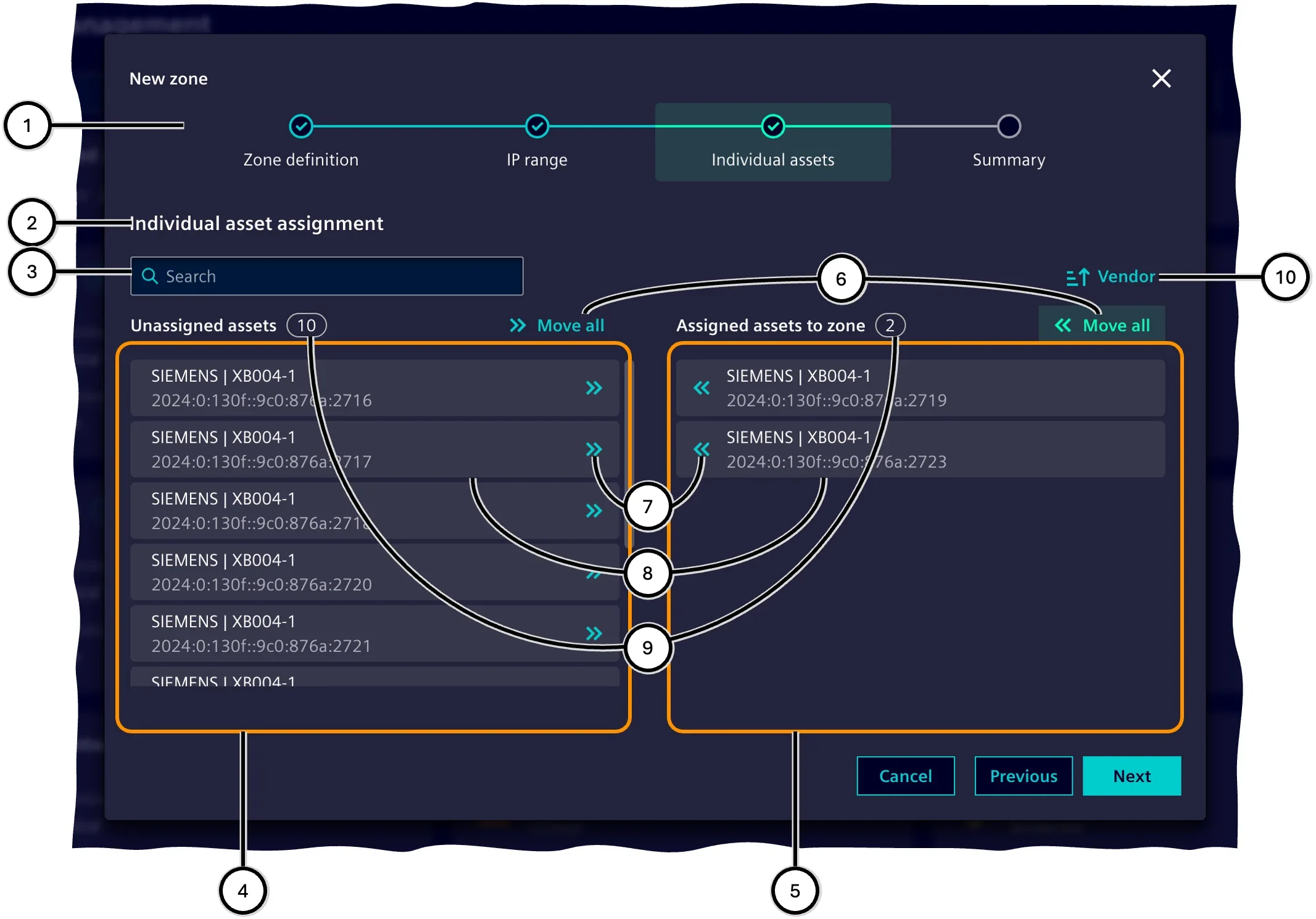
In this step, assets are added to the zone that are searched for by criteria other than their IP address, e.g., by name or product type.
Note Assets that are part of an IP range of the current zone and have been manually added to its exclusion list in step 'IP range' will not be listed in the step 'Individual assets'.
The functionality of this step largely corresponds to that of the last dialog of IP range. Differences are:
-
The step does not use IP ranges and therefore does not offer navigation to a parent dialog.
-
The left list ④ shows unassigned assets instead of excluded assets.
| Number | Description |
|---|---|
| ① | Steps of the 'Zone wizard' |
| ② | Display of unassigned assets and manually added assets |
| ③ | Input field for searching assets within the IP range |
| ④ | List of unassigned assets |
| ⑤ | List of manually added assets |
| ⑥ | Button to move all assets from the respective list over to the other list (④/⑤) |
| ⑦ | Button to move this asset from the current over to the other list |
| ⑧ | Information on the asset (manufacturer, asset name, IP address) |
| ⑨ | Number of assets in the respective list |
| ⑩ | Button to adjust the sorting order |
Summary
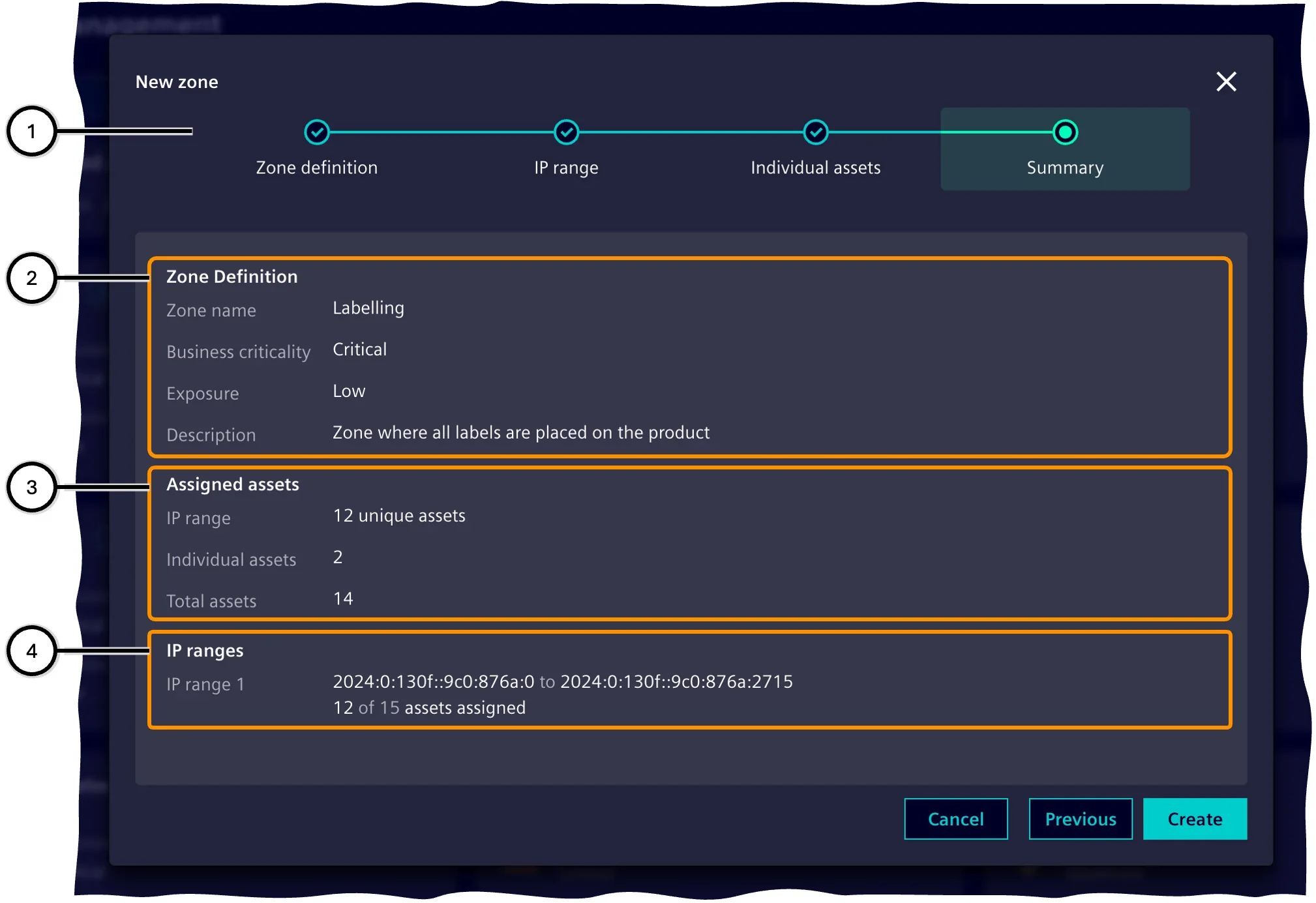
In this step, the information on the zone definition is summarized before the data is finally confirmed and the zone is created. This step does not offer its own interaction possibilities.
The information on assigned assets ③ shows how many assets were added via IP ranges, how many were added via individually, and how many assets belong to this zone in total.
The information on the defined IP ranges ④ displays the individual IP ranges. For each IP range, the start and end IP address, the number of added, and the total number of assets belonging to the IP range are shown.
| Number | Description |
|---|---|
| ① | Steps of the 'Zone wizard' |
| ② | Information on the zone definition |
| ③ | Information on assigned assets |
| ④ | Information on the defined IP ranges |